Getting started with SteamOS and Linux gaming
Use this page to choose a supported path before installing software, changing performance settings, or following device-specific advice. SteamOS is Linux-based, but official SteamOS support and general Linux compatibility are not the same thing.
Do not write a recovery image, repartition storage, disable SteamOS read-only protection, or copy a tuning preset just to “get started.” First identify the device, operating system, and recovery path you actually have.
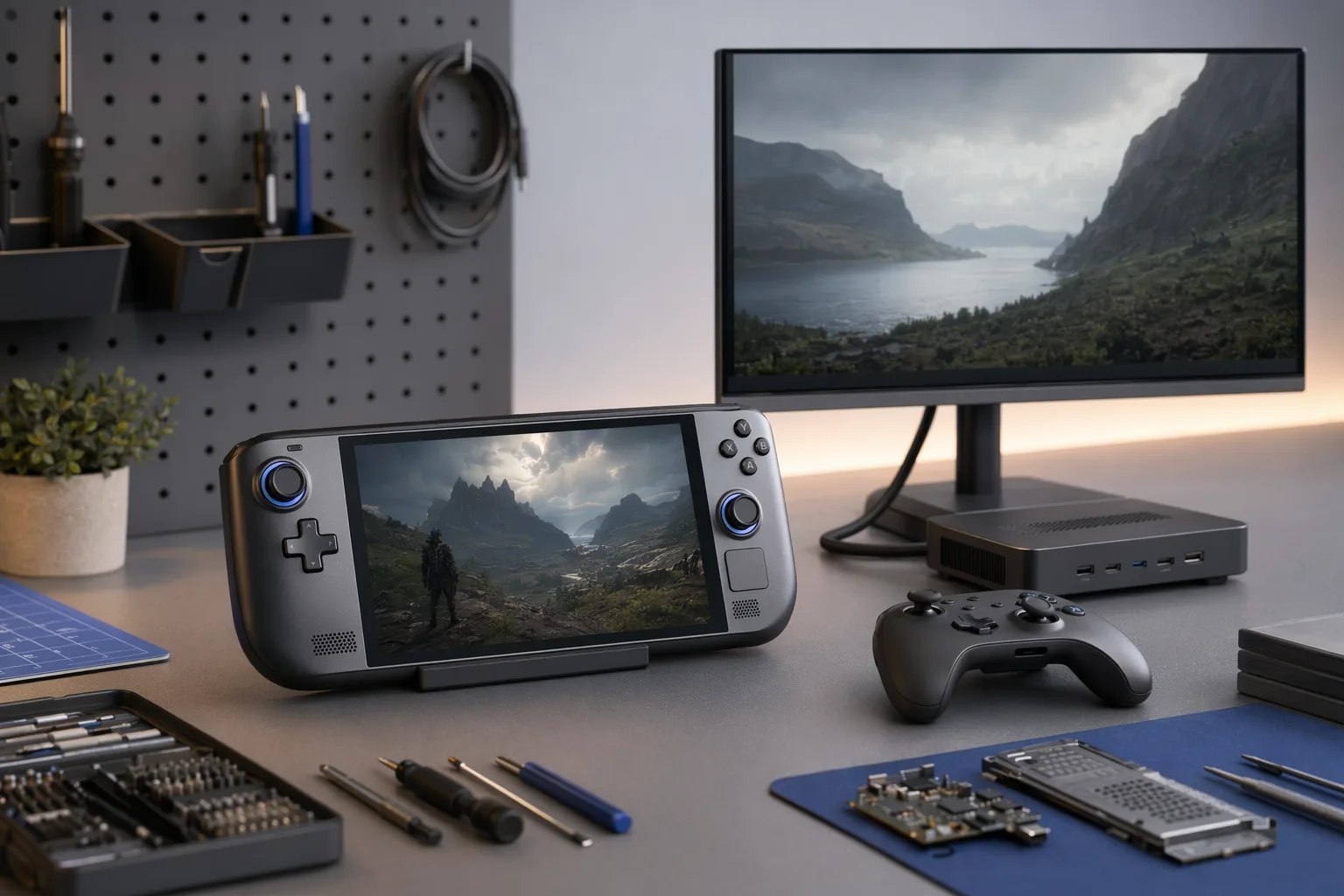
Concept illustration generated for SteamOS.Club. The hardware is intentionally generic and does not imply device support.
Pick your path
| You have or want | Start here | Why |
|---|---|---|
Steam Deck or supported SteamOS device | Learn the supported system and preserve its recovery path. | |
ROG Ally, Legion Go, Ayaneo, GPD, or PC | Separate official support from distribution-maintained compatibility. | |
A Windows game you want to run | Check title-specific evidence before changing global settings. | |
A stable setup you want to improve | Measure one change at a time and keep a rollback baseline. |
Establish a five-minute baseline
- Install offered SteamOS or distribution updates, then restart normally.
- Confirm Wi-Fi, Bluetooth, audio, display, controls, charging, and storage before adding third-party software.
- Launch one known-working Steam title without custom launch options or compatibility overrides.
- Record the device model, OS update channel and version, game build, selected Proton version, display mode, and any dock or external display.
- Back up saves and configuration that are not already protected by Steam Cloud or another tested synchronization method.
Valve's basic-use guide places updates, a normal restart, and retesting without third-party Desktop Mode applications ahead of invasive troubleshooting. That order makes later failures easier to attribute.
Understand the two interfaces
Gaming Mode
Gaming Mode is the controller-first Steam experience. Use it for the library, game downloads, per-game controller layouts, display and performance controls, system updates, and ordinary play.
Desktop Mode
Desktop Mode is the KDE Plasma environment inside SteamOS, not a second operating system. On Steam Deck, open Steam → Power → Switch to Desktop and use Return to Gaming Mode when finished. Valve directs normal desktop application installation through Discover and Flatpak; changing the read-only system partition is an advanced maintenance action, not a prerequisite.
For a read-only inventory in Desktop Mode, these commands identify the system without changing it:
Check a game before changing the system
- Read the current Deck Verified category, but do not treat it as an FPS or battery guarantee.
- Check recent, matching-device ProtonDB reports and note the Proton version and game build.
- Check title-specific anti-cheat status; vendor support can change by game and update.
- Test with the default Proton selection and no launch options before adding one controlled change.
- If a change fails, remove it and return to the recorded baseline before trying another.
Add software without losing the baseline
- Prefer Steam and the supported Discover/Flatpak path for ordinary applications.
- Verify the publisher, application ID, permissions, update source, data location, and uninstall path.
- Keep plugin loaders, root scripts, compatibility tools, and system-level tweaks out of the initial baseline.
- Do not paste commands that omit the target device, supported version, verification, side effects, or rollback.
Choose the next guide
Learn the stack
Set up or recover a system
Diagnose a problem
Frequently asked questions
Should I install the Steam Deck recovery image on another handheld?Should I install the Steam Deck recovery image on another handheld?
Do I need the Linux terminal to start gaming?Do I need the Linux terminal to start gaming?
Sources
Version history
- 2026-07-15: Published the task-oriented SteamOS and Linux gaming getting-started path; added a bilingual route map and reviewed generic workbench illustration.